Translate Youtube Videos Online for Free

Tutorials & Guides
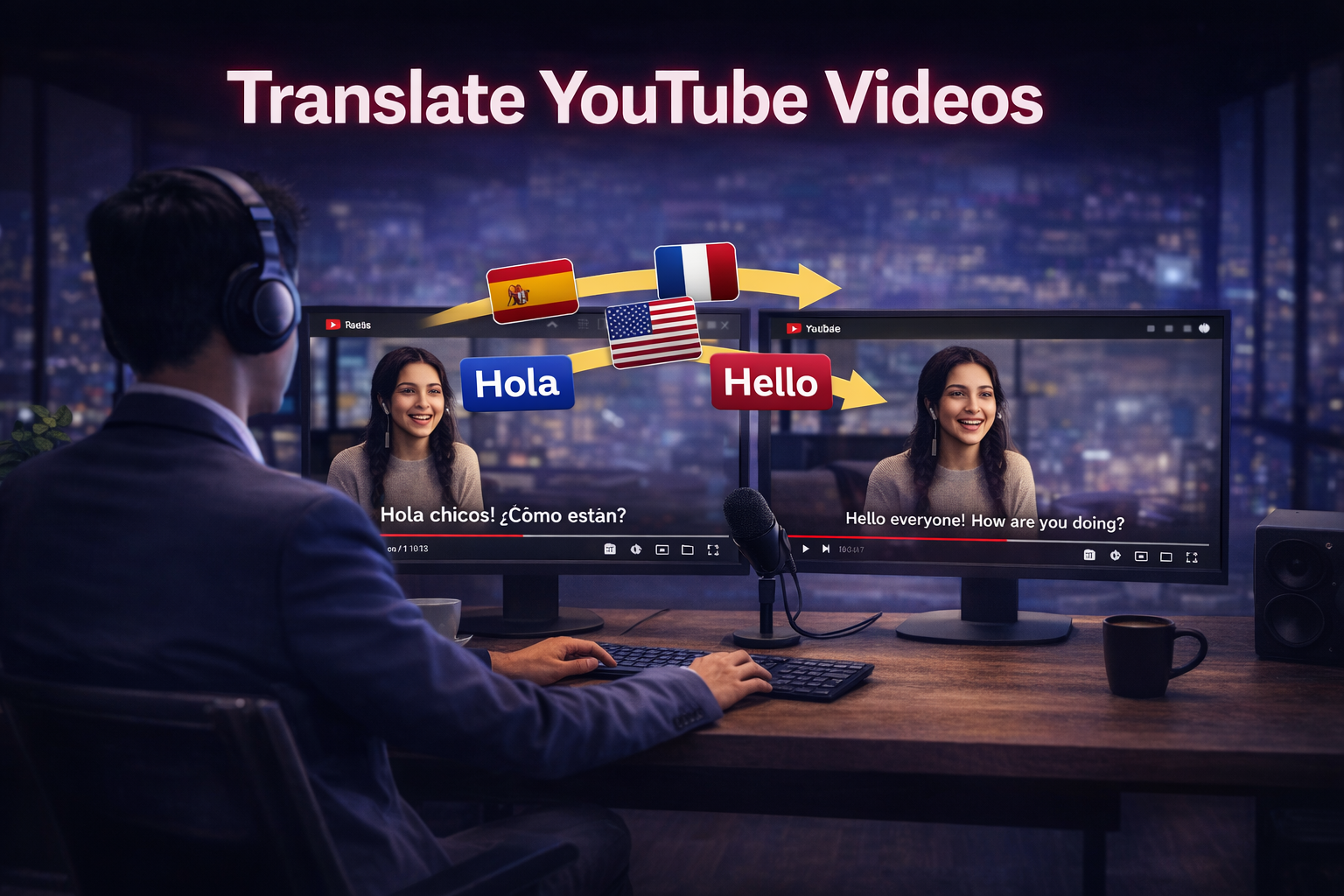

YouTube is the undisputed king of long-form content, but a language barrier can put a cap on your global reach. If you want your videos to perform in new markets, translating the spoken audio is the most effective way to localize without the cost of a new production. With CHAMELAION, the workflow is simple: download the video, upload it to CHAMELAION, and run a one-click translation.
Before you can translate a YouTube video in CHAMELAION, you need the video file saved locally. If you don't have the original export, follow these steps:
Go to app.chamelaion.com and sign in. If you are new, you can sign up instantly with Google or use your email.
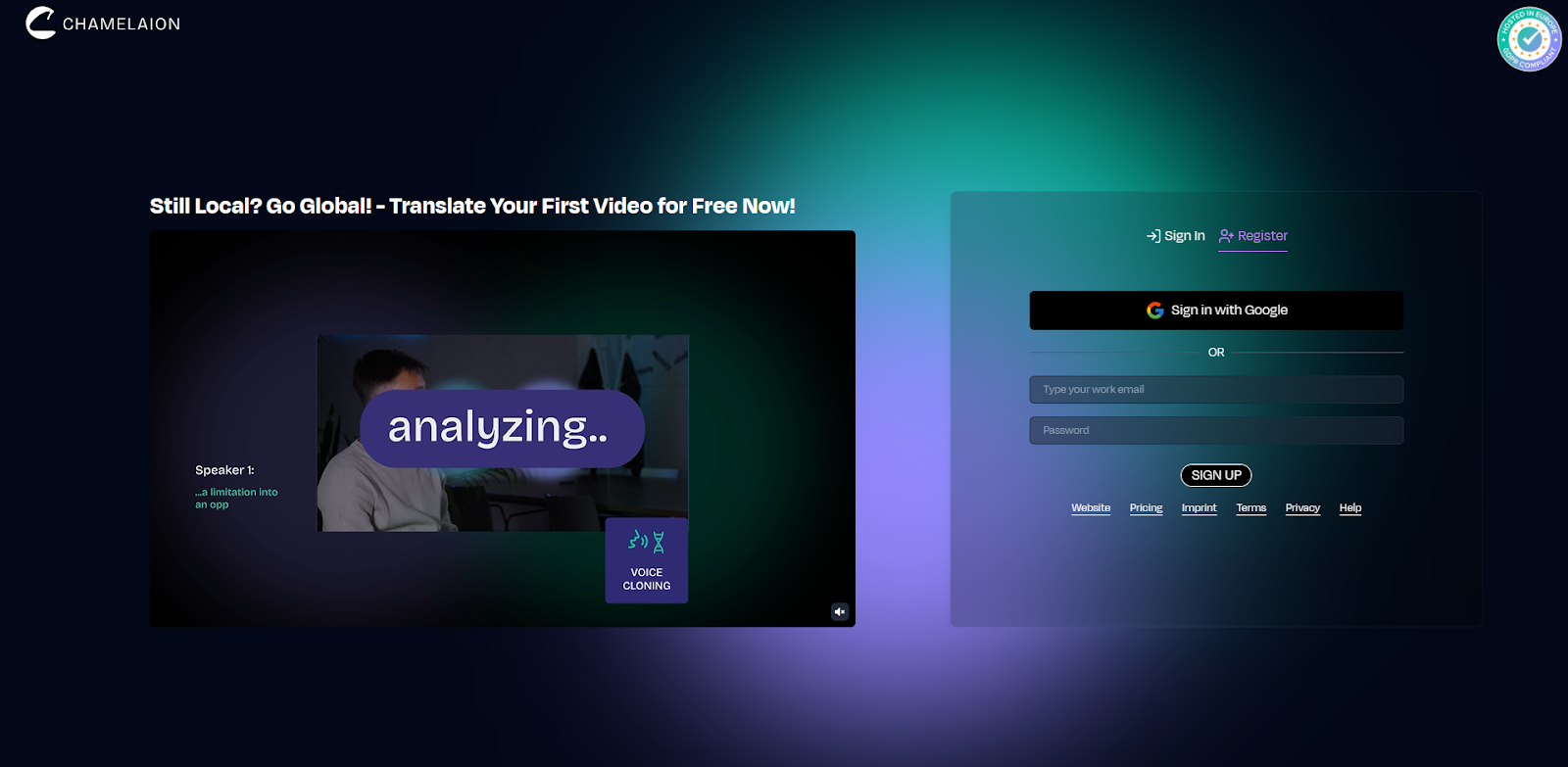
After signing up, you will be asked to verify your email and set your display name.
Once logged in, upload the file you just downloaded. CHAMELAION supports common formats like MP4 and MOV.
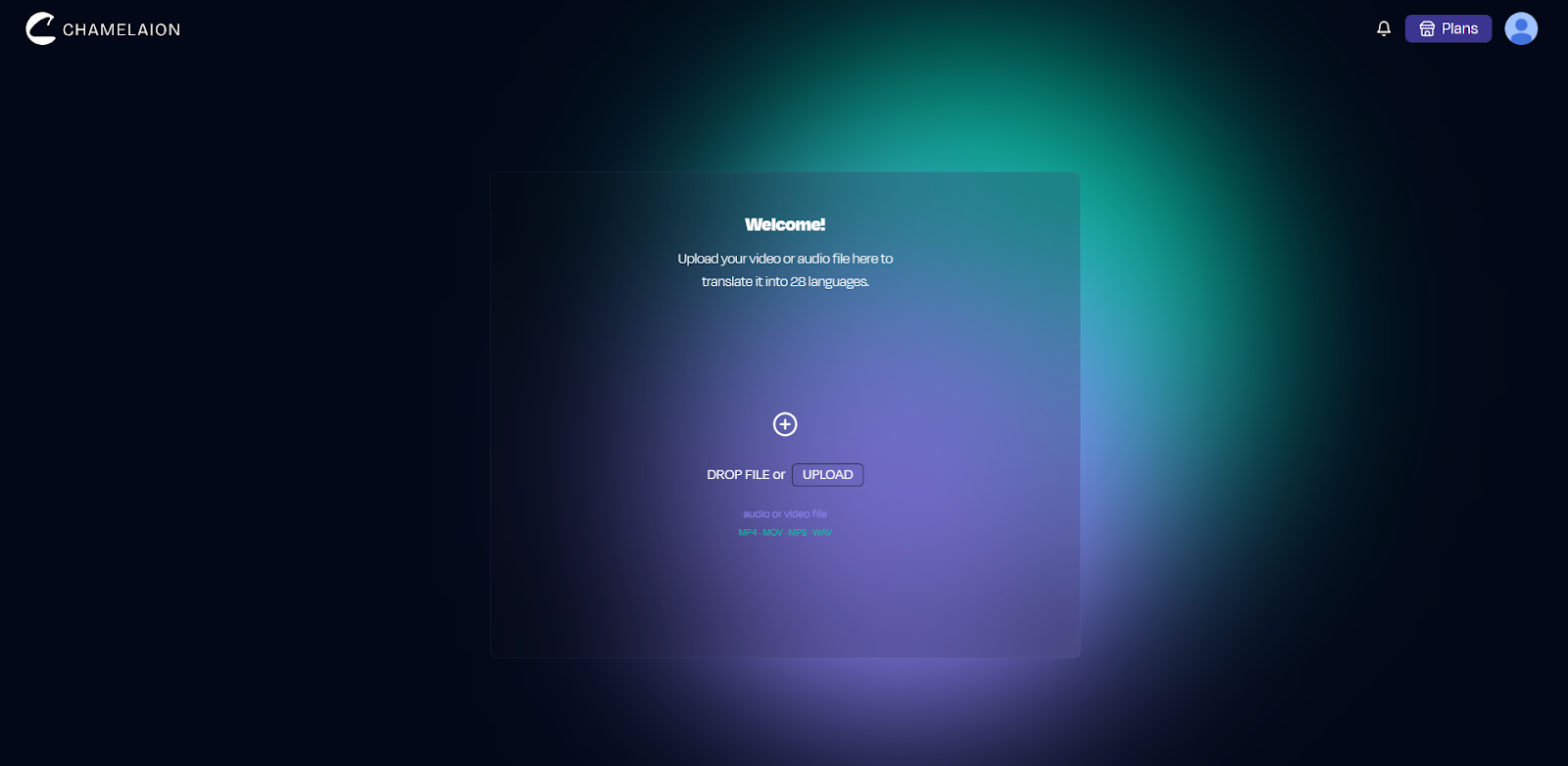
Longer videos are no problem; they just take a few extra minutes to process.
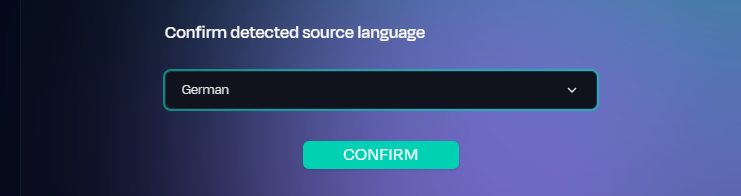
CHAMELAION detects the spoken language automatically. Confirm this, then pick the target language (or multiple languages) for your translation.
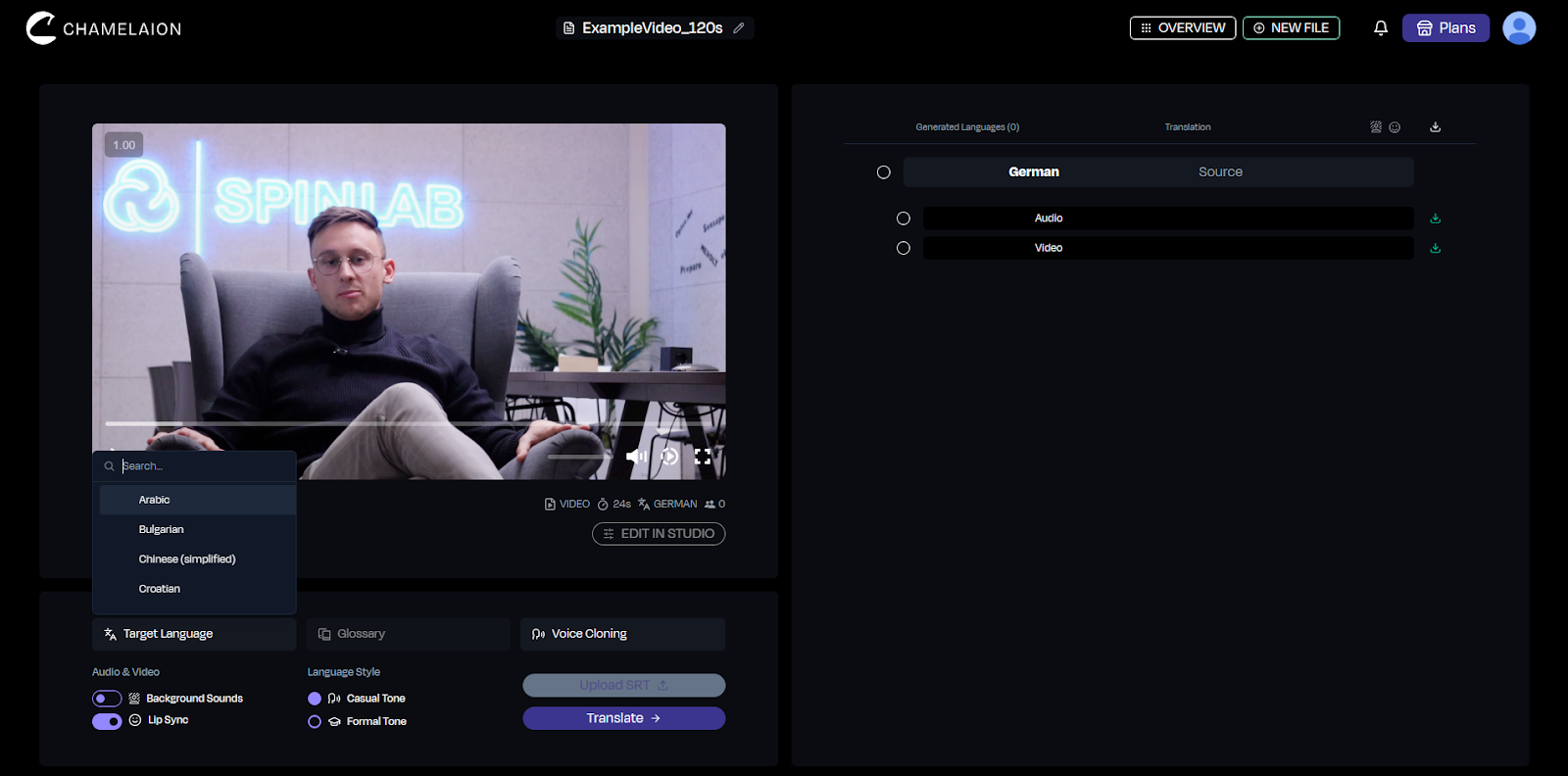
Tip: For YouTube, we recommend starting with one language to validate engagement (watch time/retention) before expanding to a full multi-language rollout.
Before clicking Translate, check these optional "pro" toggles:
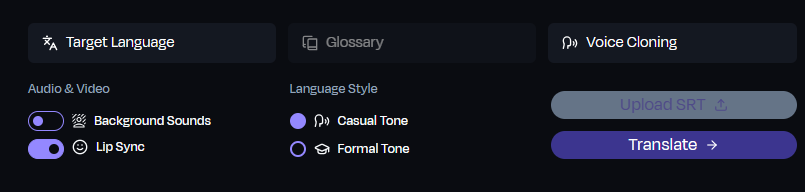
Click Translate. CHAMELAION’s AI will transcribe, translate, and generate a new audio track. Once finished, preview the results and download your export. On the free Starter plan, exports include a small watermark.
Learn more about our Plans on our Pricing Page.
If a specific technical term or brand name needs adjustment, open the Dubbing Studio. Here you can refine:
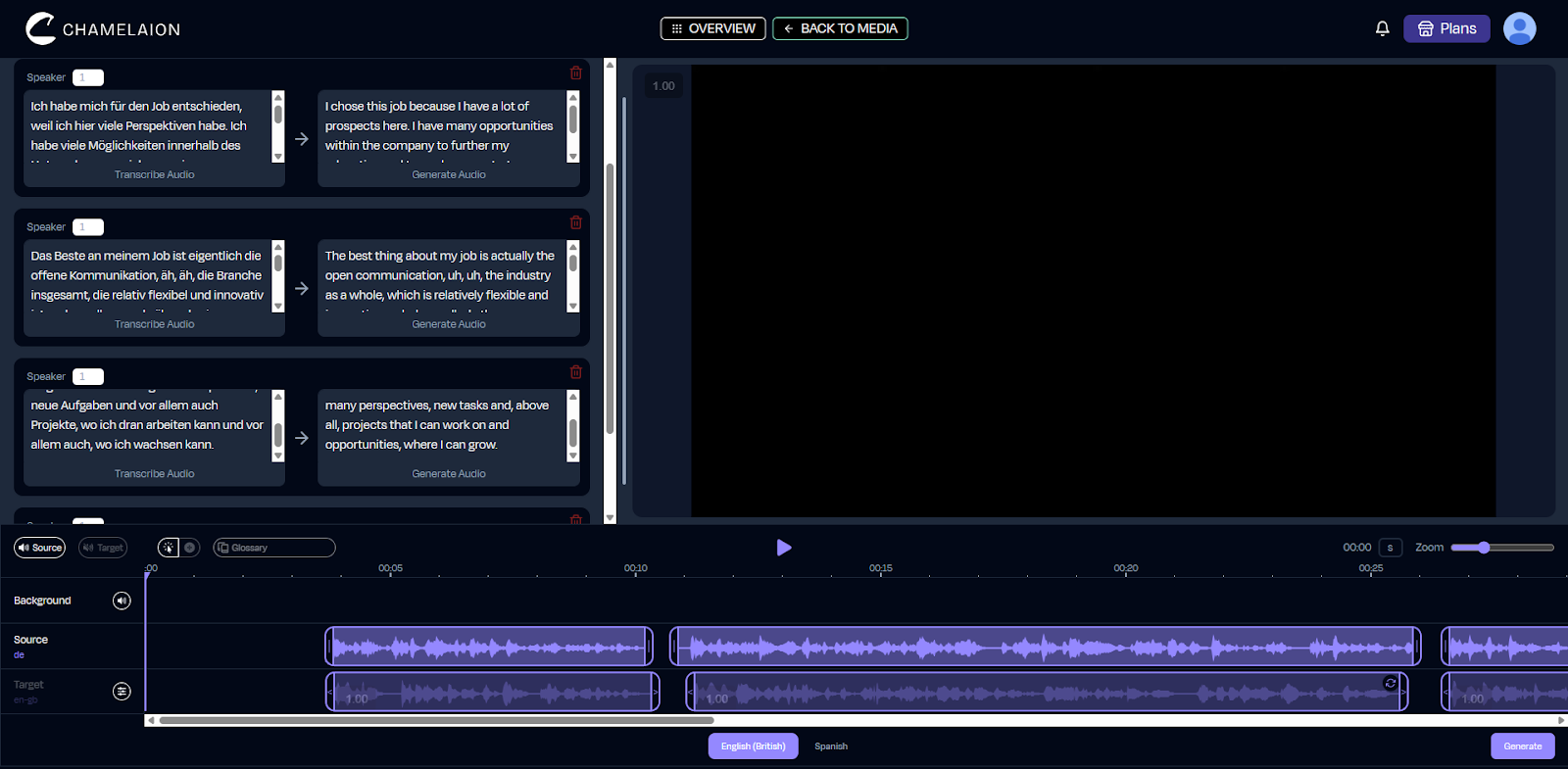
If you want more details on CHAMELEON’s Dubbing Studio and its capabilities, check out our Help Center, where you will find all sorts of tutorials and workspace tours!
Ready to go global? Start your first YouTube translation here.
Want to see more features? Visit our Website.
Check out more guides in the CHAMELAION Blog.
Is it really free?
Yes! You can start for free in CHAMELAION. For high-volume users, we offer premium plans with more credits. If you are translating lots of content or many languages, you will typically want to upgrade your CHAMELAION plan.
Learn more about our Plans on our Pricing Page.
Can I translate one video into 5 languages at once?
Absolutely. Select multiple target languages in Step 4 to generate different localized versions simultaneously.
Do I need editing software?
No. CHAMELAION is a self-contained platform. You can download, translate, and edit all in your browser.
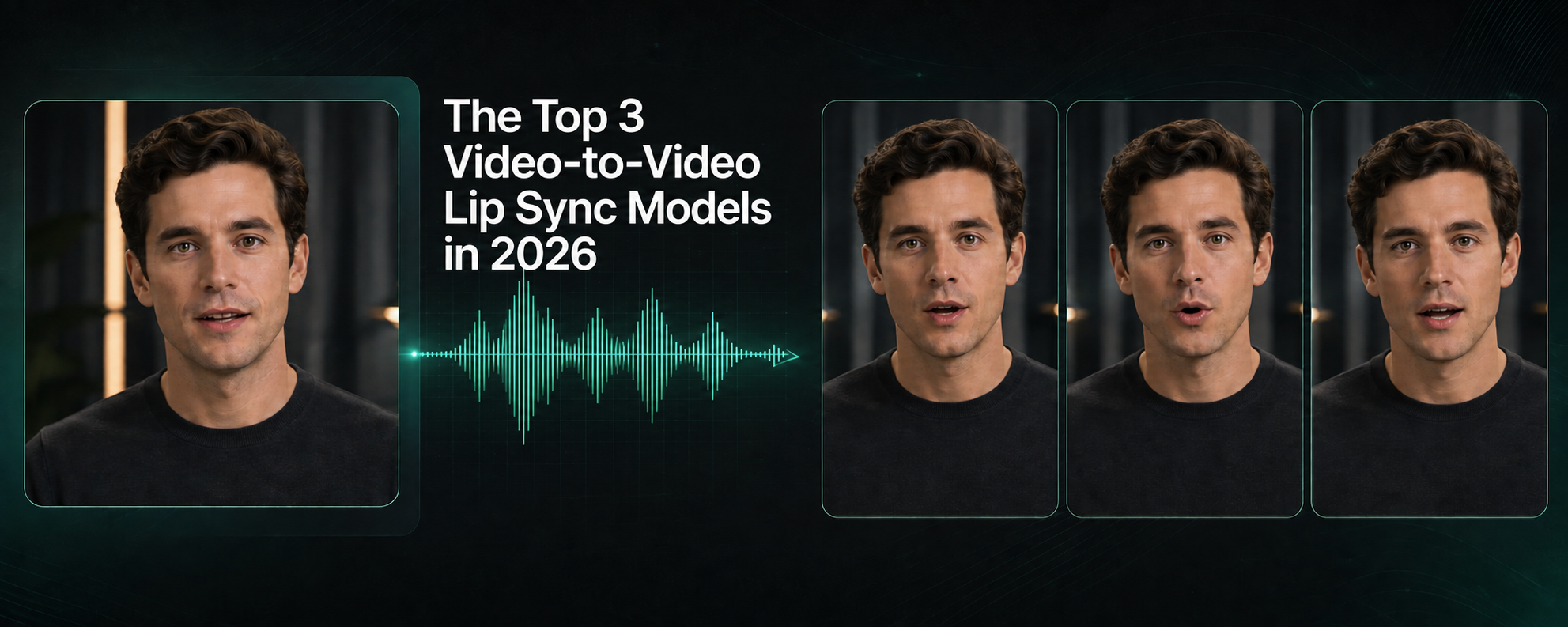
Compare Kling, CHAMELAION and Sync 3 with video examples, per-minute pricing, features, and access through platforms, APIs and SDKs.

Translate Hindi and Portuguese video or audio with CHAMELAION. Upload, choose languages, click Translate, then preview and export in minutes.


© 2025 CHAMELAION GmbH